



Xquare.net provides an additional feature that allows you to offer discounts based on a minimum quantity of product purchases. Follow these steps to set it up:
1. Submit Your Product
Before configuring the Product Quantity settings, you must first submit the product you have created.
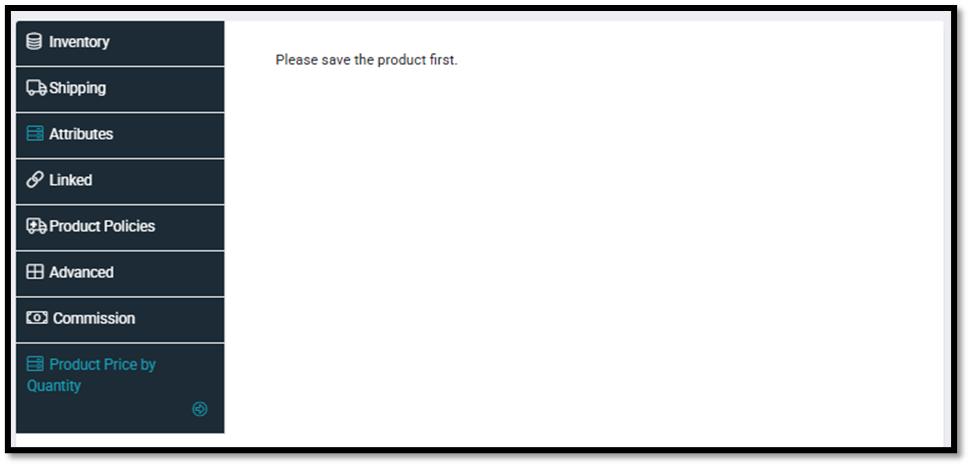
2. Select “Product Price by Quantity” Menu
Next, scroll down to the bottom of the Edit Product page and access the Product Price by Quantity menu.
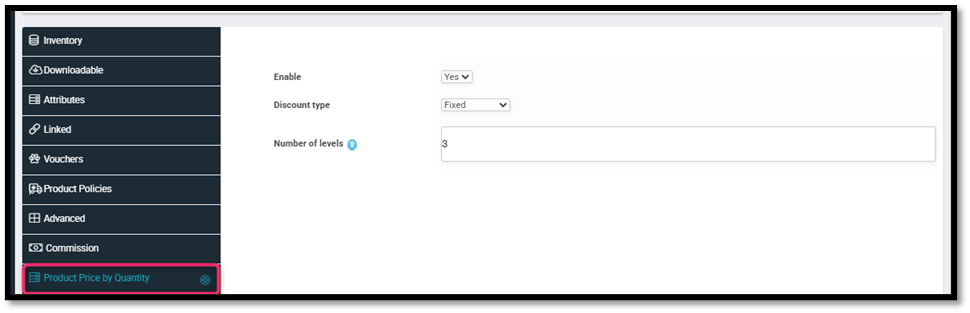
3. Enable “Product Price By Quantity”
Activate this feature by selecting “Yes” on the Enable option.
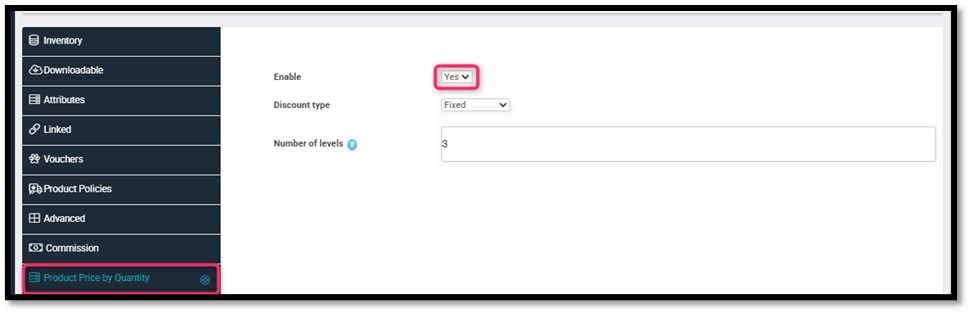
4. Choose the Discount Type
Set the discount type according to your needs:
- Percent → if the discount is a percentage (e.g., 10%).
- Fixed → if the discount is a fixed amount (e.g., Rp10,000).
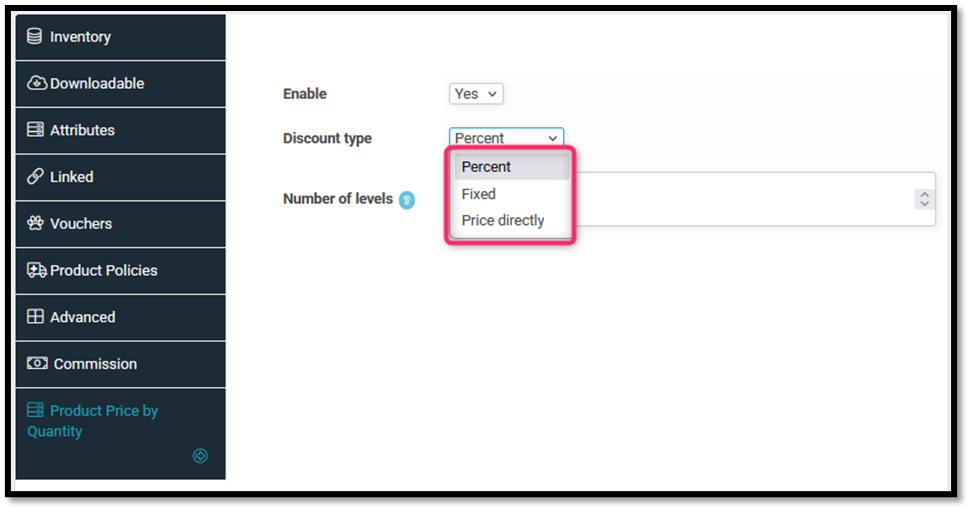
6. Set the Number of Levels
Enter the number of quantity levels you want to define in the Number of Levels field. Then click Submit to continue.
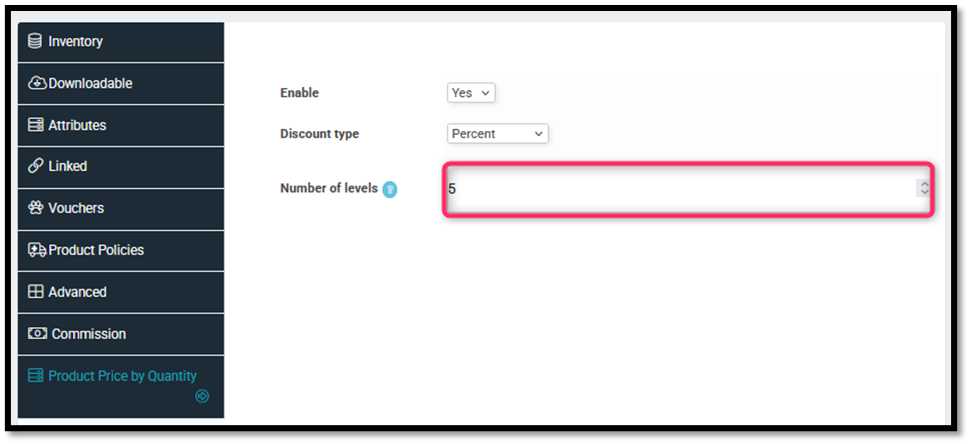
7. Configure Detailed Settings
After saving, the system will display additional fields where you can enter:
- The minimum purchase quantity for each level.
- The discount value for each respective level.
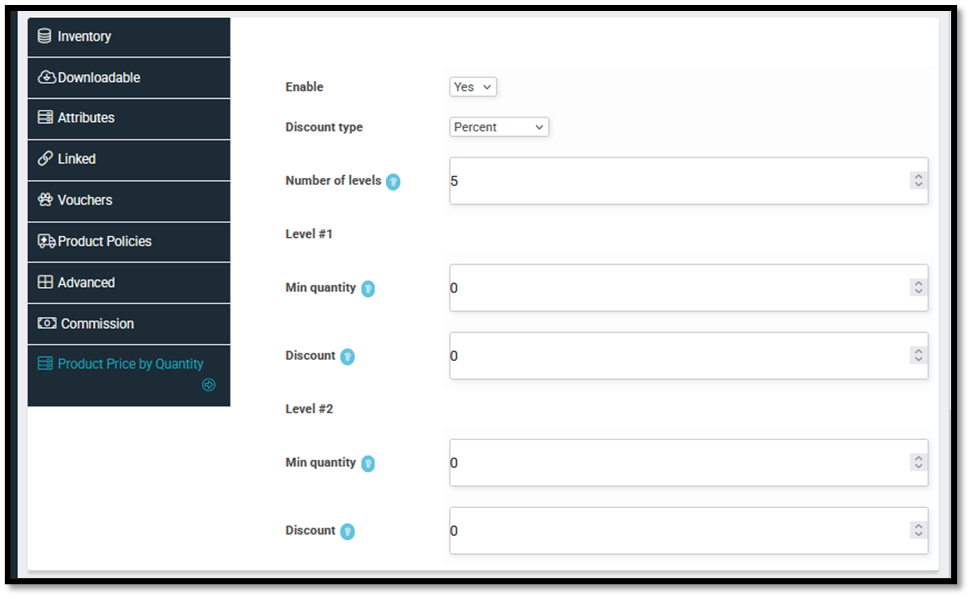
7. Submit
Once all the details are complete, click Submit to save your configuration.


