



Go to https://yay.xquare.ofiz.cloud and log in using your account credentials.
2. Access the Store Manager Menu
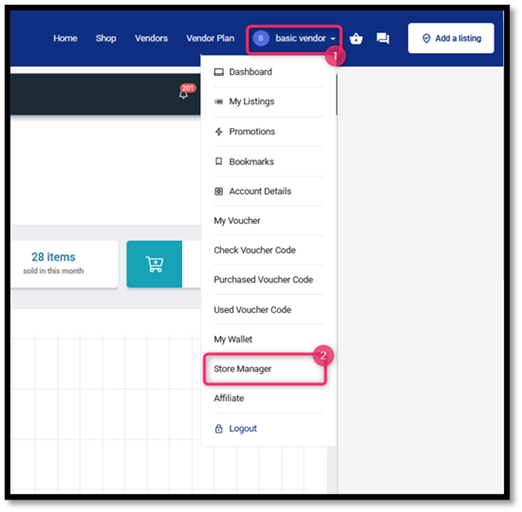
Once logged in, open the “Account Profile” menu and select “Store Manager.”
3. Access the Settings Menu
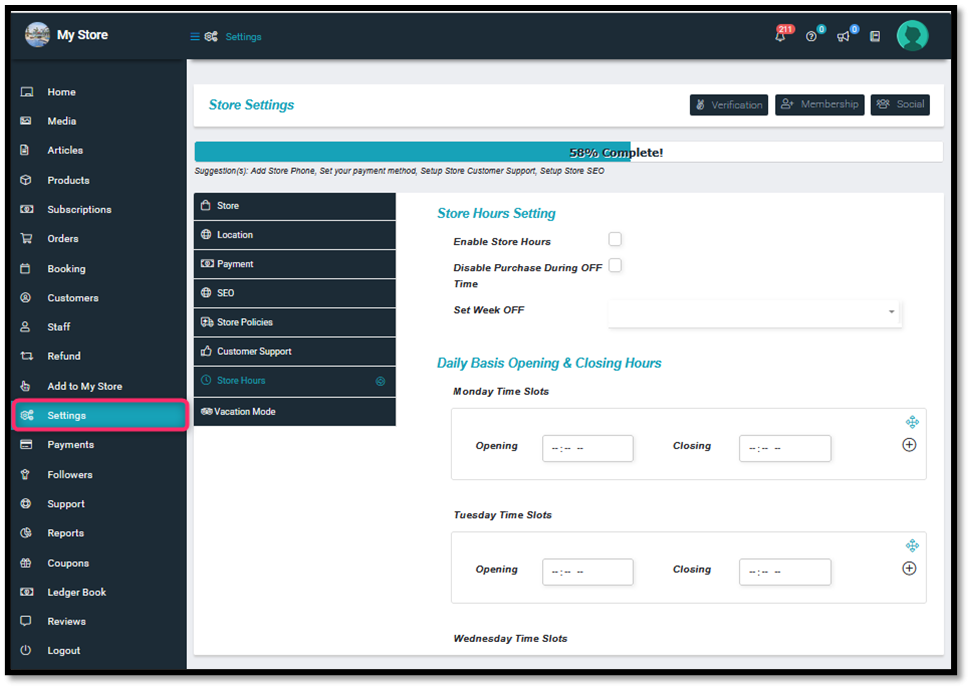
On the left menu panel, scroll down and click on the “Settings” menu.
4. Select the “Store Hours” Submenu.
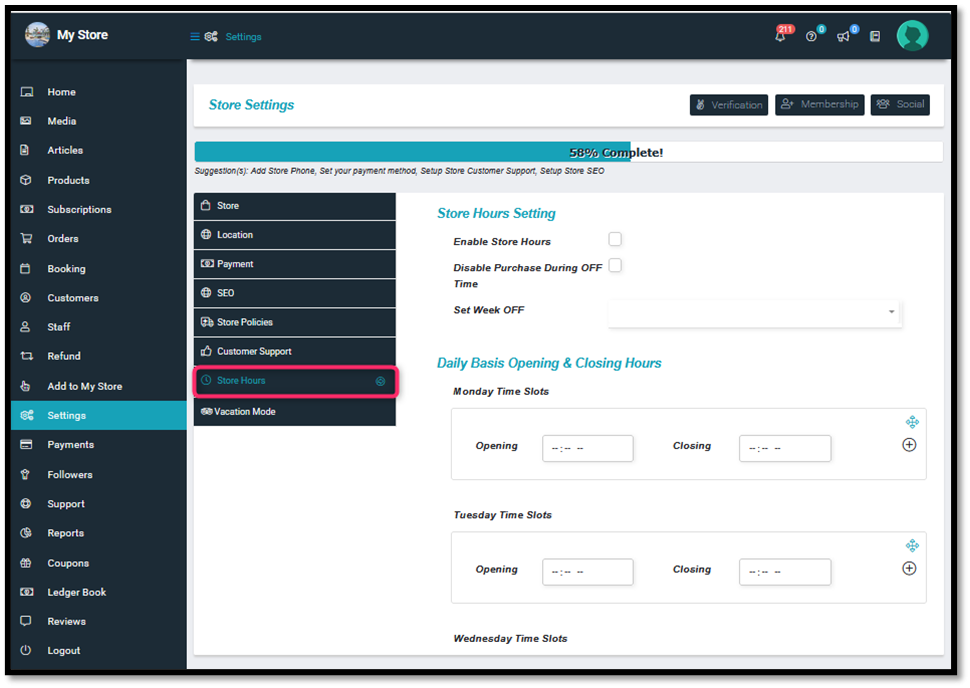
After entering Settings, click the “Store Hours” submenu on the left side of the screen.
5. Enable Store Hours
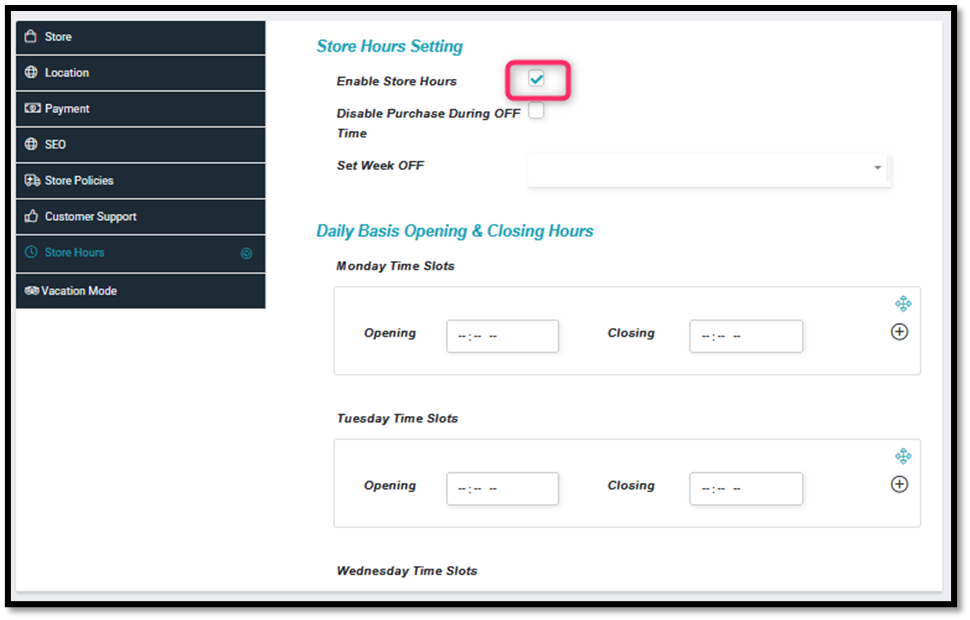
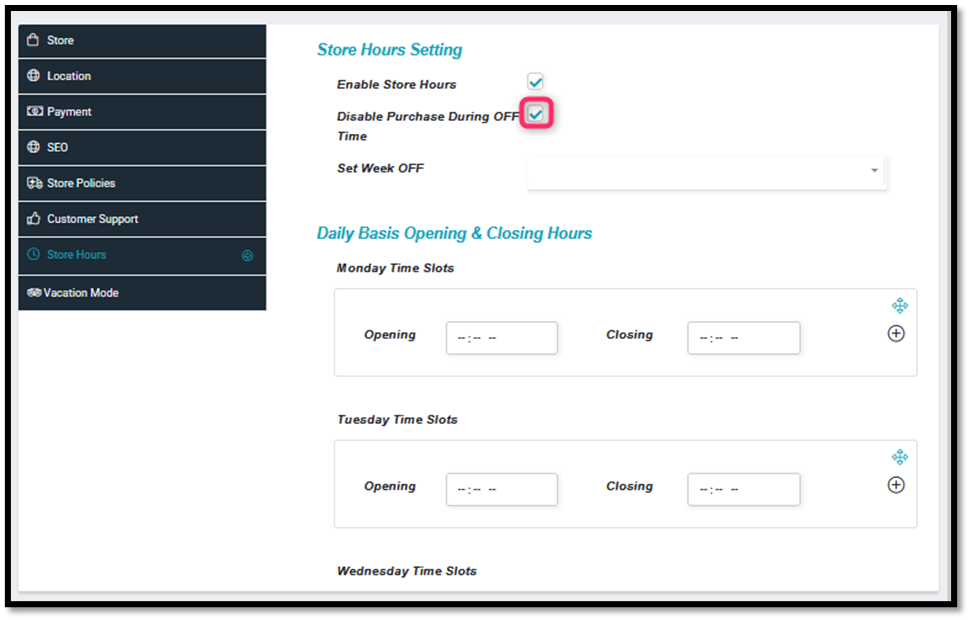
Check the “Enable Store Hours” checkbox to enable your store’s operating hours settings.
6.(Optional) Disable Purchase When Store is Closed
If you want to disable purchases when the store is closed, check the “Disable Purchase During OFF Time” option.
7. Set Store Holidays (Optional)
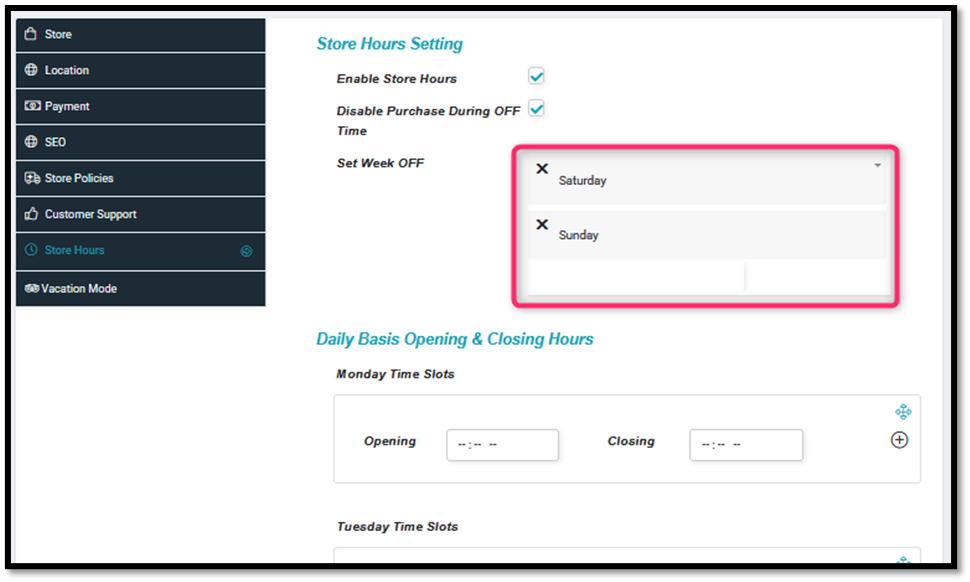
In the “Set Week OFF” section, select the day you want to set as the store’s weekly holiday.
8.Set Daily Opening and Closing Hours
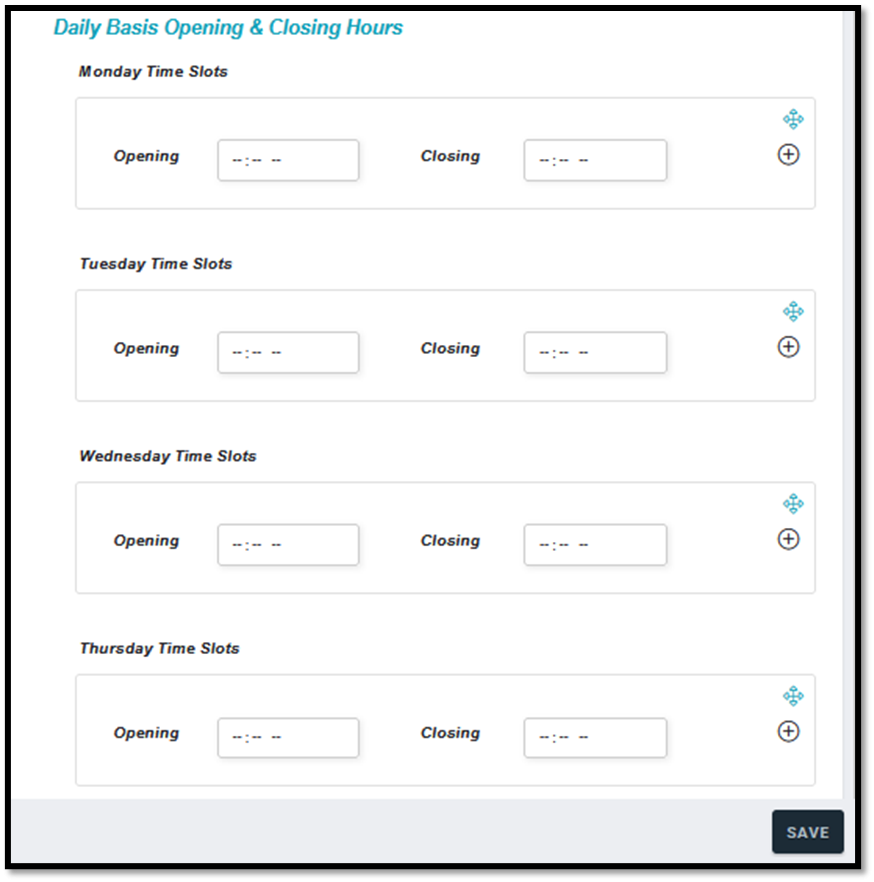
In the Daily Basis Opening & Closing Hours section, you can set the operating hours per day.
For example, in the Monday Time Slots section, click on the “Opening” and “Closing” columns to set the opening and closing hours.
Click on the “+” (add) icon if you want to add more than one time slot (for example: open morning and afternoon).
9. Save Settings
Once all the settings are filled in as desired, click the Save button.


